1. Save the recording on your phone
Your phone or supported dialler must produce a recording file. KroLead backup does not make call recording available on devices that do not support it.
KroLead helps connect supported phone recordings with lead records and upload them to Google Drive. Your team can return to the conversation alongside notes, call activity and the next follow-up.
Explore recording backup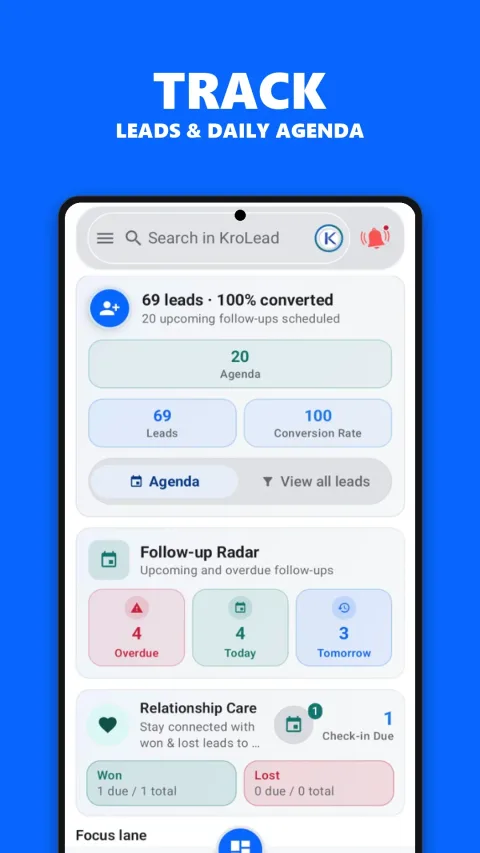
Actual app screen with sample records. Recording availability depends on your phone and setup.
Your phone or supported dialler must produce a recording file. KroLead backup does not make call recording available on devices that do not support it.
Choose the folder containing your call recordings and grant the requested folder access. If the folder moves or access is revoked, review the selection in backup settings.
Use the authorized backup account and ensure it has free storage. Uploads require connectivity; account authorization and Android background restrictions can affect when backup completes.
Eligible recordings are matched to lead activity. Authorized workspace users can review recordings available to their role, alongside the information needed for the next customer conversation.
Check recording availability on the actual phone before relying on automatic backup. Device manufacturer, dialler, Android version and region may affect recording support. Follow applicable consent requirements before recording or sharing calls.
Both directions are supported when a recording exists in the selected folder and can be matched to eligible call activity. The app cannot upload a recording that the phone did not save.
Confirm the recording file exists, the selected folder is accessible, backup is enabled, the connected Drive account is authorized and has storage, and the phone has connectivity. If it is still missing, contact support with the app version, phone model and approximate call time; do not share private audio unnecessarily.
No. Recording access must follow the account and workspace authorization rules. A shared organization does not mean unrestricted access for every user.
No. Notes capture an outcome or next action in text. Backup stores an existing audio recording. Use lead notes and sales follow-ups even when your device does not support call recording.
Start with lead records, call notes and next actions. Add recording backup where your device and permissions support it.
Related guides: telecalling CRM · sales follow-up management · offline Android CRM . See our privacy policy for data-handling information.